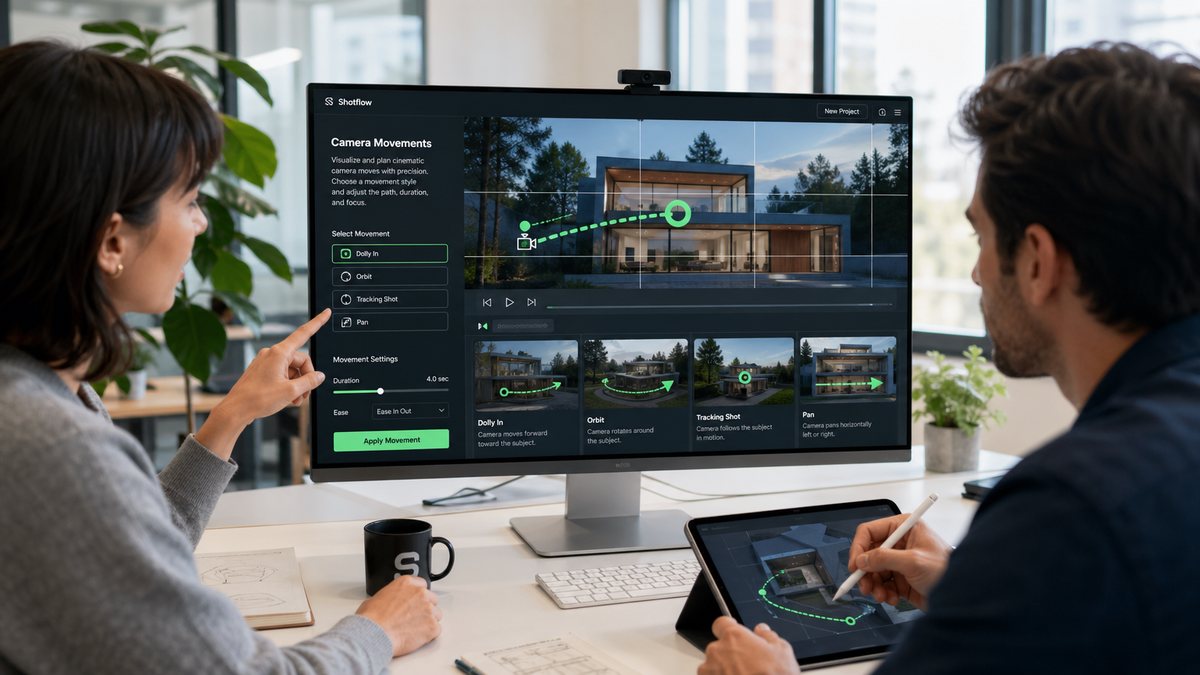
Seedance 2.0 Camera Movement Prompts: Dolly, Orbit, Pan, and Tracking Shots
Camera movement is one of the clearest ways to make AI video feel directed. The mistake is asking for several moves in one short clip. Seedance 2.0 prompts work better when you choose one camera verb, define speed, and explain how the subject should stay framed.
Use one camera verb
Pick push-in, pull-back, pan, tilt, orbit, tracking, handheld, crane, or locked-off. If the shot also has complex subject motion, keep the camera simpler. The prompt engineering guide explains how to separate subject action from camera action.
Camera movement examples
Dolly push-in:
Chef plates a small dessert under warm kitchen light, camera slowly pushes in from medium shot to close-up, subject stays centered, 6 seconds.

Orbit:
White sneaker on a concrete pedestal, camera makes one slow 180-degree orbit, product remains sharp, background softly blurred.

Tracking:
Cyclist rides along an empty riverside path, camera tracks parallel at the same speed, smooth motion, no sudden zooms.
When to use each move
Push-in
Use a push-in when the viewer should notice detail, emotion, or product quality. It works well for watches, food, faces, packaging, and reveal moments.
Pull-back
Use a pull-back when the context matters. Start tight on the subject, then reveal the environment, crowd, room, or landscape.
Orbit
Use orbit for product shape, fashion looks, sculpture, furniture, and game assets. Keep the subject still so the rotation feels intentional.
Tracking
Use tracking for running, cycling, walking, delivery, travel, and lifestyle clips. Say whether the camera moves beside, behind, or in front of the subject.
Troubleshooting motion
- If the camera jumps, lower the ambition: "slow smooth push-in" is better than "dynamic cinematic camera."
- If the subject leaves frame, add "subject remains centered" or "product stays fully visible."
- If the model changes the scene, state "same location throughout the shot."
- If you need repeatable camera variants, record the best prompt in a table and scale with the API workflow.
Combine camera with references
If identity is important, use an image reference and make the camera the only moving part: "preserve the product exactly; camera performs a slow clockwise orbit." This prevents the prompt from turning the product into a new design. For that workflow, use the omni reference guide.
Direct one camera move
Choose a single movement, define its speed, and keep the subject framed.
Start creatingContinue the workflow
Apply the same prompt, reference and budget checks when moving between model versions.
- Seedance 2.0 API workflow
- Seedance 2.5 timed prompts
- Seedance 2.5 reference planning
- Seedance 2.5 duration and cost
Return to the complete guide library or compare API credit costs.