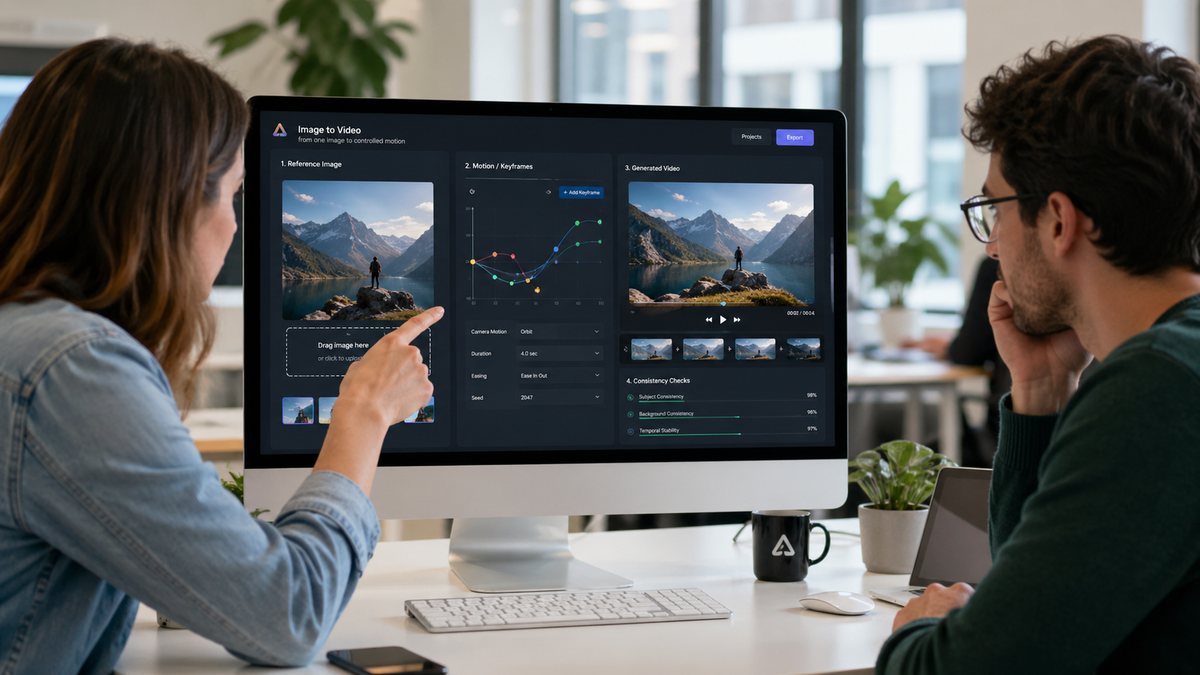
Seedance 2.0 Image-to-Video Workflow: Turn One Reference into Motion
Image-to-video is the right workflow when the subject must stay recognizable: a product, a character, a room, a poster, or a branded visual. The goal is not to describe a new object. The goal is to preserve the reference and animate only the parts that should move.
Start with a clean image
Use a sharp image with one main subject, enough visible edges, and minimal clutter. Crop out watermarks, UI overlays, and random background text. Then use the prompt to define motion. For multi-input control beyond one image, read the omni reference guide.
Reference-first prompt
Use the uploaded image as the exact visual reference.
Preserve the product shape, color, label, and logo placement.
Animate only: soft studio light sweeps from left to right, subtle reflection moves across the surface.
Camera: slow push-in, product remains centered and fully visible, 6 seconds, no new text.
Step-by-step workflow
- Choose the reference image and decide what must stay unchanged.
- Write the motion as a small list: object motion, camera motion, lighting motion, and environment motion.
- Render a short draft. Do not test long duration until identity and framing are correct.
- If the subject changes, strengthen preservation language and remove style words that conflict with the image.
- If the motion is weak, describe a physical path: "rotates 30 degrees", "light sweeps left to right", or "camera pushes in slowly."
Use-case examples
Product: preserve packaging and logo, animate mist, reflections, or a slow orbit.
Character: preserve face, outfit, and pose, animate hair, blinking, breathing, or a gentle camera move.
Interior: preserve room layout, animate sunlight, curtains, fireplace, or a slow pan.
Poster or album art: preserve composition, animate depth layers, particles, light, or subtle parallax.
Common mistakes
Do not ask for a full scene rewrite if the image is the source of truth. A prompt like "make this product commercial cinematic with many effects" invites drift. A better prompt says exactly which parts can move. If you plan to make many variants, keep the same image and swap only one variable at a time. The camera movement guide is useful when you want the reference to stay fixed while the lens moves.
Animate one reference
Upload a clean image, preserve what matters, and animate only the visible motion.
Start creatingContinue the workflow
Apply the same prompt, reference and budget checks when moving between model versions.
- Seedance 2.0 API workflow
- Seedance 2.5 timed prompts
- Seedance 2.5 reference planning
- Seedance 2.5 duration and cost
Return to the complete guide library or compare API credit costs.